
How to Import and Review a Questionnaire in LooprAI

Start with the PDF to XLSForm converter if your source questionnaire is a PDF.
Start with the Word to XLSForm converter when your source questionnaire is a DOCX file.
LooprAI can read a PDF, DOCX, or XLSX questionnaire and build an editable XLSForm workbook — the Excel-based format that ODK Central uses for mobile data collection. The conversion attempts to map question structure, response options, and section logic. You then review and refine the output before exporting.
Free document imports preview the first 12 questions; larger imports require LooprAI Pro.
What you'll need
- A PDF, DOCX, or XLSX questionnaire
- A SurveyLoopr account with LooprAI access
How to prepare your document
LooprAI reads the structure of your document to identify question types. Better-structured documents produce better conversions.
For best results:
- Use consistent numbering (1., 1.1, 1.2, 2., etc.)
- Mark response options clearly (e.g., "1. Yes 2. No" or checkbox lists)
- Use section headings for major modules
The AI can detect:
- Text questions →
texttype - Numeric questions →
integerordecimaltype - Single-choice questions (select one) →
select_onetype - Multiple-choice questions (select all that apply) →
select_multipletype - Date/time questions →
dateortimetype - GPS location questions →
geopointtype
If your questionnaire has skip logic (e.g., "If Q5 = Yes, skip to Q10"), include a note in the document like "Skip to Q10 if Yes." LooprAI will attempt to convert these to XLSForm relevant conditions. Always review them after conversion, then follow the XLSForm validation checklist.
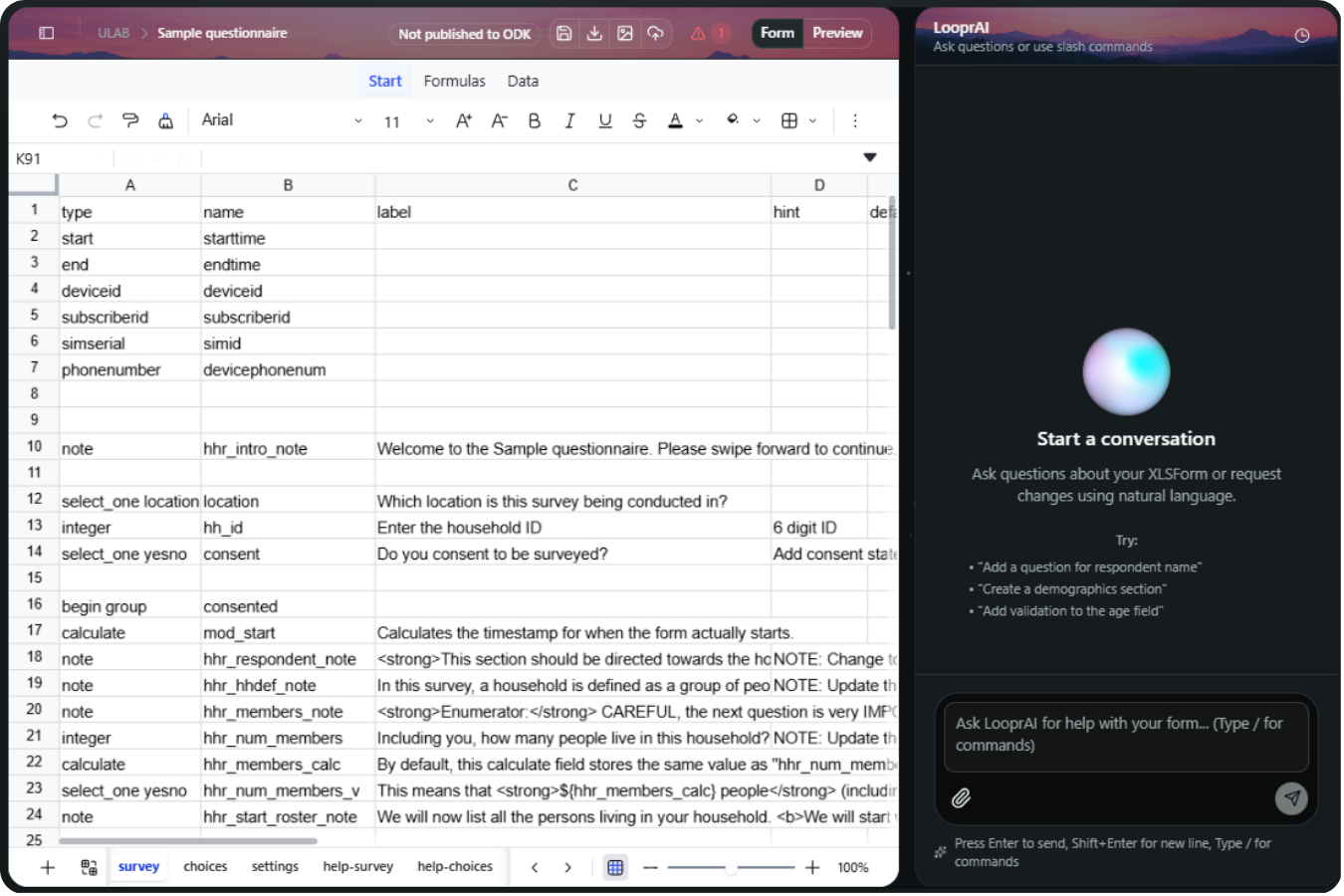
Step 1: Open LooprAI Workspace
From your SurveyLoopr dashboard, click Workspace in the left sidebar, then open an existing workbook or click New Workbook.
Step 2: Upload your document
In the LooprAI chat panel on the right side of the workspace, type:
Convert my questionnaire to XLSForm
LooprAI will respond with an upload prompt. Drag and drop your PDF, DOCX, or XLSX file into the chat, or click the attachment icon.
Step 3: Review the conversion
After processing, LooprAI builds an editable XLSForm workbook in the workspace. You'll see the survey sheet populated with its interpretation of your questions.
Review the following carefully:
- Question types — make sure numeric questions use
integerordecimal, nottext - Choice lists — verify option values are clean (no spaces, no special characters)
- Required fields — LooprAI marks all questions as required by default; adjust as needed
- Skip logic — check any
relevantconditions against your original instrument
Step 4: Check validation details and fix issues
Switch to Preview to run the form through the mobile preview and validation flow. If the form has syntax issues, missing choice lists, unsupported question types, or warnings, open the validation details and review each message before publishing.
For many common validation issues, you can ask LooprAI to attempt guided repairs with the /fix slash command:
/fix validation errors
LooprAI will read the current validation errors, attempt an update, and run the check again. ODK validation checks rules; it does not guarantee field readiness or that an attempted repair succeeds.
Step 5: Refine with follow-up prompts
You can also ask LooprAI to make design adjustments in plain English:
Make Q12 not required
Add a "Don't know" option to all select_one questions
Move the household roster section before the income module
For reusable survey content, see How to Use Standardized Modules. For multilingual forms, see How to Add Languages in ODK.
Step 6: Manage media files
If your form uses images, audio, video, or attached files, click the Form media button in the workspace toolbar. Use it to upload and manage the files referenced by your XLSForm.
The media drawer helps you see which files are already uploaded and which referenced files are still missing. Upload missing files before publishing, especially when your form has image prompts, audio instructions, video examples, or file questions.
Step 7: Preview on mobile
Click Preview in the toolbar to open the form in a mobile ODK simulation. Test the navigation, skip logic, and response types to confirm everything works as expected.
Always test the form by submitting a test record before deploying to field teams. XLSForm validation checks syntax, but only a real submission tests the user experience.
Step 8: Publish or download the XLSForm
When the form looks correct, you have two options.
Option A: Publish directly to a SurveyLoopr server
If you have a SurveyLoopr-hosted ODK server available, click Publish to ODK in the workspace toolbar. Choose the server, project, and form target, review any warnings, then publish.
Direct publishing is limited to SurveyLoopr-hosted ODK Central; use the downloaded XLSX elsewhere. The hosted publish flow can also upload referenced media files.
If you do not have a server yet, follow Getting a Server before publishing.
If you are new to Central after publishing, read ODK Central Basics for projects, users, Collect setup, and submissions.
Option B: Download as Excel and upload in ODK Central
If you want to upload manually, click Download XLSX to download the current workbook as an Excel .xlsx file. If you need a paper version for review or backup, see How to Convert XLSForm to PDF.
Then go to ODK Central and upload the XLSForm there. For ODK Central-specific project, form, and publishing steps, follow the official Using ODK Central documentation.
Build my first form freeFrequently Asked Questions
How do I convert a Word questionnaire to XLSForm?
Upload a DOCX file to LooprAI Workspace and ask it to convert the questionnaire. LooprAI attempts to map questions, response options, and section logic into an editable workbook. Review and validate it, then publish to SurveyLoopr-hosted ODK Central or download the XLSX for use elsewhere.
What file formats can LooprAI convert to XLSForm?
LooprAI's production import flow accepts PDF, DOCX, and XLSX files. Legacy DOC and XLS files are not supported. It builds an editable XLSForm workbook for review; download the XLSX to test and upload it manually to another compatible platform.
Can I convert a PDF questionnaire to ODK?
Yes. Upload the PDF to LooprAI and it attempts to extract the questions and answer options into an editable XLSForm workbook. PDF layouts vary, so review question types, choice lists, and skip logic before publishing or downloading.
How accurate is the AI questionnaire conversion?
LooprAI attempts to preserve question structure, response options, and section logic, then checks the result against ODK rules. Accuracy depends on the source layout. Validation does not guarantee field readiness, so review, refine, and test the form before fieldwork.
Can I edit the converted form before publishing?
Yes. The conversion produces an editable XLSForm workbook. You can refine it by chatting with LooprAI or editing the spreadsheet directly, then publish to SurveyLoopr-hosted ODK Central or download the XLSX to test and upload manually elsewhere.
No Credit Card Required
Build the form first. Add hosting when you need it.
Start free with LooprAI, then deploy a managed ODK Central server or run DataSnap checks when your project is ready.
Automation handles the mechanical work.
Researchers decide what the evidence means.