
Common XLSForm Errors and How to Fix Them

Most XLSForm upload errors come from seven causes: a misspelled ${variable} reference, a duplicate question name, a choice list name that doesn't match, an invalid question type, an unclosed group or repeat, broken expression syntax, or illegal characters in a name. Every one of them has a 30-second fix once you can read the error message.
You can run a browser-based XLSForm quick check before working through these repairs. It catches common structure and expression problems without uploading the workbook.
Use the XLSForm validation checklist to test the repaired workbook in ODK Central and on a field device before publishing.
Here is each error the way ODK reports it, what it actually means, and the fix.
1. "There has been a problem trying to replace … with the XPath to the survey element"
Cause: A relevant, constraint, or calculation references a question name that doesn't exist — usually a typo, or the question was renamed after the logic was written.
Fix: Search the survey sheet for the exact name inside ${...}. Match it character-for-character to the name column of the question it points to. Names are case-sensitive: ${Age} does not find age.
2. "Duplicate column header" or "There are two survey elements named ..."
Cause: Two rows share the same name, or the same column header appears twice (often a stray duplicate label column).
Fix: Every name on the survey sheet must be unique, including inside groups. Rename one of the pair (phone → phone_respondent) and update any ${} references to it.
3. "List name not in choices sheet"
Cause: A select_one district or select_multiple symptoms row references a list_name that doesn't exist on the choices sheet — a typo or singular/plural mismatch like district vs districts.
Fix: Copy the list name from the survey sheet's type cell and paste it into the list_name column for every option in that list. The two must match exactly.
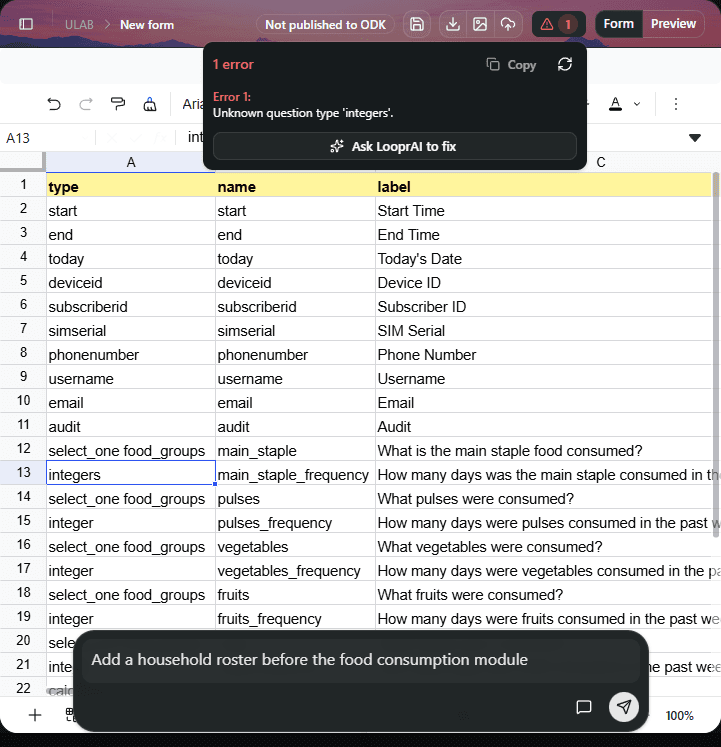
4. "Unknown question type"
Cause: The type column contains something outside the XLSForm spec — number, dropdown, checkbox, and location are the usual suspects, especially in AI-generated forms (see what breaks when ChatGPT builds XLSForms).
Fix: Replace with real types: integer or decimal for numbers, select_one listname for dropdowns, select_multiple listname for checkboxes, geopoint for GPS. The full set is in XLSForm question types.
5. "Unmatched begin group" / "Unmatched begin repeat"
Cause: A begin group or begin repeat row without its closing end group / end repeat, or closings in the wrong order when nested.
Fix: Count your begins and ends — they must pair like brackets, innermost closing first. Indenting group contents in the spreadsheet makes the structure visible. For repeats specifically, see XLSForm repeat groups.
6. "Invalid expression" in relevant or constraint
Cause: Programming syntax in an XPath column. The classics: == instead of =, AND/OR in caps instead of lowercase and/or, != written as <>, or referencing the question's own answer as ${name} instead of . in its constraint.
Fix:
| type | name | label | constraint | relevant |
|---|---|---|---|---|
| integer | age | Age in years | . >= 0 and . <= 120 | |
| text | job | Occupation | ${age} >= 18 and ${consent} = 'yes' |
More working patterns in constraint examples and skip logic.
7. "Invalid name" — spaces and special characters
Cause: Question names containing spaces, hyphens, or starting with a number: household size, q-1, 1stchild.
Fix: Names must start with a letter or underscore and contain only letters, numbers, and underscores: household_size, q_1, first_child. Put the human-readable text in label, never in name.
Fix errors top-to-bottom. One broken name often cascades into several XPath errors below it, and validators report only the first failure they hit — re-validate after each fix.
Fix the whole form at once with AI
Reading validator output line-by-line works, but you don't have to. Upload your failing XLSForm to LooprAI and run /fix — it identifies broken references, invalid types, list mismatches, and XPath syntax in one pass and repairs them while keeping your form's logic intact. It's free to start, no credit card.
Next: XLSForm constraint examples →
Frequently Asked Questions
Why does my XLSForm fail to upload to ODK?
The most common causes are a typo in a ${variable} reference, a select question whose list name is missing from the choices sheet, a duplicate question name, an invalid question type, or an unclosed group. ODK reports the first error it finds, so fix and re-validate iteratively.
What does the XPath replacement error mean in XLSForm?
It means an expression references a question name that doesn't exist in the form. Check the name inside ${...} against the name column character-for-character — XLSForm names are case-sensitive, and a renamed question breaks every expression that referenced its old name.
How do I validate an XLSForm before uploading?
Run the form through pyxform via ODK's online XLSForm converter, or build in a workspace that validates continuously, like LooprAI. Validating before upload catches reference, type, and syntax errors without the upload-fail-edit-retry loop on your server.
Why is my select_one question not working?
Almost always because the list name after select_one doesn't exactly match a list_name value on the choices sheet. Singular versus plural mismatches like district versus districts are the classic case. The two must match exactly, including case.
What characters are allowed in XLSForm question names?
Names must start with a letter or underscore and may contain only letters, numbers, and underscores. Spaces, hyphens, and leading digits are invalid. Use the label column for human-readable question text and keep names short and machine-friendly.
Can AI fix XLSForm errors automatically?
Yes. LooprAI's /fix command analyzes a failing form, finds broken references, invalid types, choice list mismatches, and XPath syntax errors, and repairs them in one pass while preserving the survey logic. You can start free without a credit card.
No Credit Card Required
Build the form first. Add hosting when you need it.
Start free with LooprAI, then deploy a managed ODK Central server or run DataSnap checks when your project is ready.
Automation handles the mechanical work.
Researchers decide what the evidence means.